Windows computers often will have a lot of startup apps that will start when the computer is booted up. These apps can slow down both the bootup time and also slow the computer down while you are using it because these apps will run in the background. So this article is a simple list to help Windows users determine which Apps to disable upon bootup.
Startup Apps:
Programs enabled at startup—often called boot or startup programs—are applications configured to launch automatically when your computer powers on and the operating system loads. These can include essential services like antivirus software, cloud sync tools, and system utilities, as well as optional apps such as messaging clients or update managers. While startup programs can improve convenience by ensuring key tools are always running, having too many enabled can slow down boot times and consume system resources in the background. Managing which programs start at boot is an important part of maintaining system performance, allowing users to prioritize critical applications while disabling unnecessary ones.
Startup App Location:
To navigate to the Startup App location simply Press the Windows Key on the keyboard and type in Task Manager.
There will be a tab that sais ‘Startup Apps’ Click on that tab.
Here you will be able to select the desired app and disable it. Be Careful as some of these apps may be required by your system such as NVIDIA APPS, Ect.
Disable List:
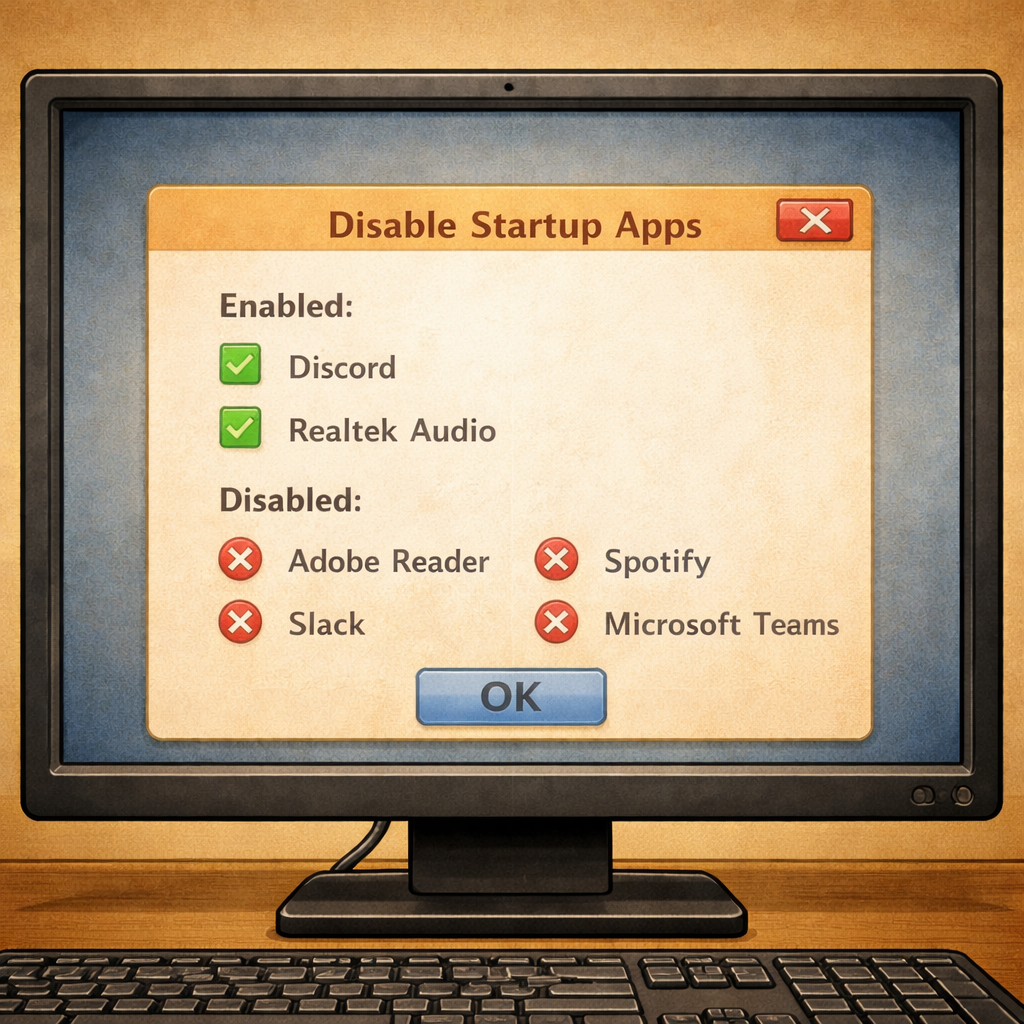
These Apps should be fine to Disable as if you do end up using these programs they will only start when you need them.
- BrCtrCen: Brother Printer
- BrStMonW: Brother Printer
- Copilot
- DuckDuckGo Startup Boost
- HP Smart for Printers
- HpuseHostLauncher
- Microsoft 365 Copilot
- Microsoft Teams
- Mobile devices
- MSEDGE
- MSEDGE.exe
- Phone Link
- Librewolf
- Phone Link
- ChatGPT
- Terminal
- EEventManager.exe
- SamsungDex.exe
- Canva.exe
- EEPCCMON.EXE
- Spotify
- Skype
- Microsoft Teams
- Adobe Creative Cloud
- Zoom
- iTunes
- Game launchers (e.g., Steam, Epic Games Launcher, Battle.net, XBox) – Start them only when you’re ready to play.
- Printer Apps
- Weather
If List:
If you do not use the Apps in this list then it is ok to disable them. Some of the items on this list may be important to keep Enabled as they can do things like back up your data in the background while you work. So this list is up to you if you want to disable them!
- OneDrive (Microsoft Cloud)
Keep List:
This is a list of Apps that your should Probably keep Enabled as your system may use them.
- AMD
- NVIDIA
- RtkAudUService64 (Realtek Audio)
- SurfaceDTX.exe

Checkout Jackie’s Tech Guide Book Store — your one-stop destination for fun, easy-to-follow guides that help everyday users master their technology. Whether you’re looking to boost the speed of your Windows computer, improve your digital workflow, or better understand your devices, our illustrated tech books break down complex topics into clear, friendly steps. Each guide is designed with vibrant visuals and practical tips to empower readers of all skill levels. Whether you’re a beginner or just want a faster, smoother experience, Jackie’s guides make tech less intimidating and more empowering.